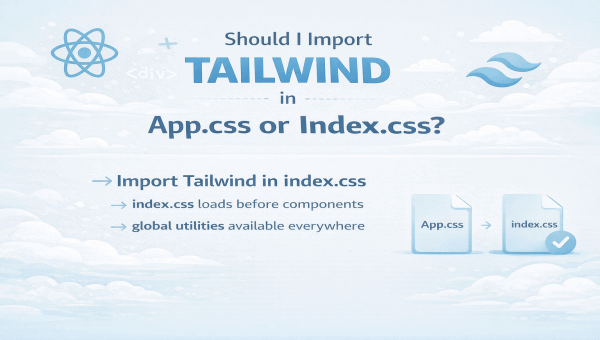
The Short Answer
Always import Tailwind in your global entry stylesheet — that's src/index.css for React/Vite/Vue or app/globals.css for Next.js.
Don't treat Tailwind as a component-level stylesheet like App.css. This is the official recommendation across all framework guides, and there are solid technical reasons why.
Why Import Tailwind in a Global CSS File?
There are four main technical reasons why importing Tailwind in a global entry file (index.css or globals.css) is the correct approach:
1. Single Canonical Build
Tailwind generates a single compiled stylesheet from the file you import at the top level. Importing once prevents duplicate output and avoids CSS conflicts.
2. Purging & Content Scanning
Tailwind scans your source files for classes and removes unused rules. This scanning is configured with your tailwind.config content globs — but the CSS itself should be loaded exactly once, at app entry.
3. Predictable Cascade & Layers
Tailwind (especially v4) uses cascade layers and a unified toolchain. Keeping utilities in a global file makes specificity and layering easier to reason about.
4. Framework Conventions Match This
CRA examples use src/index.css; Next.js uses app/globals.css; Vue + Vite imports the global CSS in main.js.
✅ Global file (index.css / globals.css)
❌ Component file (App.css) — not recommended
Tailwind CSS v4 — What's Different?
Tailwind CSS v4 brings a unified toolchain and built-in @import handling. The recommended entry is now simpler:
Tailwind v4 (New Style)
/* index.css or globals.css */
@import "tailwindcss";
Tailwind v3 (Still Works)
/* index.css or globals.css */
@tailwind base;
@tailwind components;
@tailwind utilities;
Important: v4 targets modern browsers (Safari 16.4+, Chrome 111+, Firefox 128+). If you need to support older browsers, check the upgrade guide or stay on v3.
Quick Setup Checklist
Here's the streamlined process for adding Tailwind to any project:
- Install Tailwind package (and framework plugin if recommended)
- Create
tailwind.config.jsand set content globs to include all templates - Add Tailwind directives/import to global stylesheet (
index.cssorglobals.css) - Import that global stylesheet once in your app entry (
index.js,main.jsx,app/layout.jsx) - Run dev server and verify classes work
Framework-Specific Examples
Let's see exactly how to set up Tailwind in different frameworks. All examples use the global file approach.
React Create React App (CRA)
CRA uses src/index.css as the global file.
# Terminal
npx create-react-app my-app
cd my-app
npm install -D tailwindcss
npx tailwindcss init
tailwind.config.js
/** @type {import('tailwindcss').Config} */
module.exports = {
  content: ["./src/**/*.{js,jsx,ts,tsx}"],
  theme: { extend: {} },
  plugins: [],
}
src/index.css (global file)
/* For Tailwind v3 style */
@tailwind base;
@tailwind components;
@tailwind utilities;
src/index.js
import React from 'react'
import ReactDOM from 'react-dom/client'
import './index.css'    // ← Import Tailwind global here
import App from './App'

ReactDOM.createRoot(document.getElementById('root')).render(<App />)
React Vite (Recommended)
Vite + Tailwind plugin. Use @import "tailwindcss" or the same directives.
# Terminal
npm create vite@latest my-vite-app --template react
cd my-vite-app
npm install -D tailwindcss @tailwindcss/vite
vite.config.ts
import { defineConfig } from 'vite'
import react from '@vitejs/plugin-react'
import tailwindcss from '@tailwindcss/vite'

export default defineConfig({
  plugins: [react(), tailwindcss()],
})
tailwind.config.js
export default {
  content: ['./index.html', './src/**/*.{js,jsx,ts,tsx}'],
  theme: { extend: {} },
  plugins: [],
}
src/index.css (global file)
/* With v4 / Vite plugin you can use the single import */
@import "tailwindcss";
src/main.jsx
import React from 'react'
import { createRoot } from 'react-dom/client'
import './index.css'      // ← Import Tailwind once here
import App from './App'

createRoot(document.getElementById('root')).render(<App />)
Next.js App Router
Next.js prefers app/globals.css with @import "tailwindcss".
# Terminal
npx create-next-app@latest my-next-app
cd my-next-app
npm install -D tailwindcss
npx tailwindcss init -p
tailwind.config.js
export default {
  content: [
    './app/**/*.{js,ts,jsx,tsx}',
    './pages/**/*.{js,ts,jsx,tsx}', // if using pages router
  ],
  theme: { extend: {} },
  plugins: [],
}
app/globals.css
/* Recommended in Next.js guide for v4 */
@import "tailwindcss";
app/layout.jsx (root)
import './globals.css'   // ← Import Tailwind global here

export default function RootLayout({ children }) {
  return <html><body>{children}</body></html>
}
Vue 3 Vite
Vue + Vite uses src/index.css and imports it in main.js.
# Terminal
npm create vite@latest my-vue-app -- --template vue
cd my-vue-app
npm install -D tailwindcss
npx tailwindcss init -p
tailwind.config.js
export default {
  content: ['./index.html', './src/**/*.{vue,js,ts,jsx,tsx}'],
  theme: { extend: {} },
  plugins: [],
}
src/index.css
@tailwind base;
@tailwind components;
@tailwind utilities;
src/main.js
import { createApp } from 'vue'
import App from './App.vue'
import './index.css'    // ← Import Tailwind here

createApp(App).mount('#app')
Universal Tailwind Config Template
This config works across most frameworks. Just adjust the content globs to match your file structure:
/** @type {import('tailwindcss').Config} */
export default {
  content: [
    './index.html',
    './src/**/*.{js,jsx,ts,tsx,vue,html}',
    './app/**/*.{js,ts,jsx,tsx,vue}', // for Next.js or other frameworks
  ],
  theme: {
    extend: {},
  },
  plugins: [],
}
⚠️ Critical: Double-check the content globs match your framework file locations. Wrong globs = missing styles in production builds!
Troubleshooting Common Issues
Classes Don't Appear
Solution: Confirm the global CSS file is imported once in the root entry (index.js / main.jsx / app/layout).
Classes Vanish in Production
Solution: Check tailwind.config content globs. Tailwind removes unused classes based on those. Make sure all your template files are included.
PostCSS Plugin Conflicts
Solution: v4 includes many built-in transforms. Check the v4 docs before adding external PostCSS plugins.
CRA Limitations
Note: CRA lacks custom PostCSS support. Docs recommend Vite/Next/Parcel for more flexibility. Consider migrating if you need advanced PostCSS control.
Complete Setup Plan (New Project)
Follow this checklist for a clean Tailwind setup:
Choose Your Stack
Vite (React or Vue) for best dev experience, or Next.js if you need SSR/ISG.
Initialize Project & Install Tailwind
npm init project → npm i -D tailwindcss → npx tailwindcss init -p
Configure Content Globs
Add content globs to tailwind.config.js that match all your template files.
Create Global CSS File
Create index.css or globals.css and add @import "tailwindcss"; (v4) or the v3 directives.
Import at App Entry
Import the global CSS once in your root entry file (index.js, main.jsx, etc.).
Test & Build
Start dev server, verify classes work, and start building components.
Key Takeaways
-
✓
Always import Tailwind in a global CSS file (
index.css,globals.css), never in component files likeApp.css. -
✓
Tailwind v4 uses
@import "tailwindcss";— simpler and cleaner than v3's three directives. -
✓
Double-check your
contentglobs intailwind.config.jsto prevent missing styles in production. - ✓ Framework conventions (React/Vue/Next.js) all follow the same global-file pattern for a reason — single build, better performance, predictable cascading.
- ✓ If you're upgrading from v3 to v4, check the official upgrade guide for breaking changes and browser support updates.
Ready to Build with Tailwind?
Now that you know where to import Tailwind, check out our collection of 100+ free Tailwind components to accelerate your development. All components are production-ready and copy-paste friendly.
Browse All Components →